How to Install XAPK & OBB Files on Android (2026 Guide)
XAPK bundles and OBB archives confuse even veteran sideloaders — and Android 13+ locks the very folder OBB files live in. Every method that still works in 2026, plus fixes for the errors people actually hit. Tags: xapk, obb, android, guide, sideloading
 MODGRIND FounderSep 19, 2026 13 min read
Big Android games rarely arrive as a single tidy file anymore. Finish a download and you are often staring at a .xapk your phone refuses to open, or an APK paired with a second archive labelled OBB, with instructions scattered across a comments section. Neither installs with a normal tap, because Android's built-in package installer only understands one thing: a plain, complete APK.
This guide walks through both real-world routes — manual installation with a file manager like ZArchiver, and the one-tap route with an XAPK-capable installer — plus the folder rules that decide whether a game finds its data or spends ten minutes re-downloading it. Everything is written for someone doing this for the first time, and everything is checked against how Android actually behaves in 2026, restrictions included.
APK, XAPK and OBB: know what you are holding

An APK is Android's standard app package — the single file the system knows how to install. Small and mid-size apps live happily in one APK.
An XAPK is a container, and the trick is simple: it is a ZIP archive with a different extension. Inside it sit the app's APK plus the extra pieces the app needs — split APKs for your CPU, screen density and language, and very often the OBB data as well. The format became common because Google Play now delivers apps in pieces (App Bundles), and stores like APKPure re-pack those pieces into one downloadable bundle. Rename .xapk to .zip and any archive tool opens it.
An OBB file is where a game keeps its heavy assets: graphics, audio, videos, maps, character models — the part that would make the APK itself enormous. It is not optional for the games that ship one, and it lives in exactly one place on your device: the Android OBB folder, Android/obb/<package name>/, on internal storage.
Why large games use OBB data at all: asset packs can run into gigabytes, update on their own schedule, and sometimes differ per device. Keeping them outside the APK lets studios ship one APK and let the data follow separately.
Which route do you need?
- XAPK only: use an XAPK installer (Method 2), or extract it manually (Method 1).
- APK + OBB pair: install the APK normally, then place the OBB folder by hand (Method 1).
- OBB update only: replace the file inside the existing
Android/obb/<package name>/folder; no reinstall needed.
Before you start: what you need

- An Android device that meets the app's minimum version. Listings state it for a reason: a bundle built for Android 12 will refuse to install on Android 10, and that refusal is the package working correctly, not a broken file.
- A file manager that handles archives — ZArchiver is the usual pick. It is free, opens zip/7z/rar without drama, and can write into
Android/obbon the Android versions that still allow it. CX File Explorer or X-plore do the job too; the built-in "Files" app on many phones cannot extract archives properly. - Enough free storage — plan for roughly double the download size. The archive sits on your storage, then the extracted contents sit beside it, then the installed app and its OBB sit in their own places. A 2 GB game can comfortably need 5 GB of breathing room mid-install.
- A stable internet connection. Interrupted downloads are the single biggest source of "corrupted archive" and "app not installed" complaints. For multi-gigabyte bundles, Wi-Fi over mobile data is not snobbery, it is error prevention.
One honest caveat before the steps: Android's menus, permission prompts and file-access rules differ by version and by manufacturer skin (One UI, HyperOS/MIUI, ColorOS and the rest all rearrange things). Where a setting lives on your phone may not match another guide's screenshot exactly — the names below are the common ones.
Method 1 — Manual installation with ZArchiver
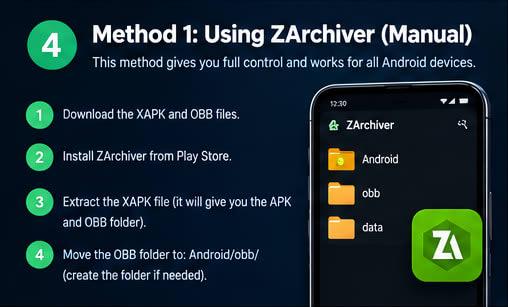
- Download the XAPK (or the APK + OBB pair) from a source you trust. Check that the listing shows the developer, the version and a file size that looks sane for the game.
- Install and open ZArchiver (or your file manager of choice) and grant it the storage permission it asks for — without it, nothing below works.
- Locate the downloaded file, normally in the
Downloadfolder of internal storage. - Extract the XAPK when necessary. Long-press the file in ZArchiver and choose Extract. A plain APK + OBB pair needs no extraction — skip to step 6.
- Identify the pieces: the APK (installable) and either an OBB file or a folder named like a package (
com.something.game), which is the game data. - Install the APK. Tap it, confirm, and when Android asks, allow "Install unknown apps" for ZArchiver or your file manager (Settings → Apps → Special app access → Install unknown apps).
- Place the OBB folder into
Android/obb/on internal storage — copy the whole folder, not just the.obbfile loose. - Make sure the folder name is correct:
Android/obb/<package name>/with the.obbfile directly inside it. One folder level, exact name, lowercase, no renaming "to keep things tidy". - Launch the game. First launch may verify or unpack data for a minute or two; that is normal.
If the game does not recognise the OBB folder, check in this order: internal storage rather than SD card; exactly one folder between obb/ and the .obb file (a classic mistake is obb/com.game.name/com.game.name/main.obb); the folder name spelled exactly like the package; and the OBB version matching the APK version. On Android 13 and newer, also consider that the system may have silently blocked your file manager from writing there — see the next section.
The Android OBB folder: placement is everything

The full path, top to bottom:
Internal storage → Android → obb → com.game.name
(com.game.name here is a placeholder example, not a real game — your folder must carry the actual package name of the app you installed, which the listing or the OBB filename itself will show.)
Why the location matters: a game does not search your storage for its data. At launch it looks at one exact path — its own package folder under Android/obb/ — and nowhere else. Data sitting in Downloads, on the SD card, or one folder too deep might as well not exist.
Why the folder name matters: the package name is the app's identity. The game only opens the folder that matches its own ID, which is why a folder called obb/game/ or obb/Game-Name/ stays invisible to it.
What a wrong path looks like from the inside: an endless "Downloading data" loop, an "OBB missing" or "data corrupted" popup, a re-download of hundreds of megabytes you already have, or a crash right after the studio splash. All of those are the game asking for files it cannot find.
And why this gets confusing across devices: file access to Android/obb is not uniform. Android 10 and older let any file manager write there. Android 11 and 12 restrict it but offer a "Use this folder" grant that ZArchiver and similar apps can use. Android 13 and newer tightened it again through 2023–2024 security patches, and on many current devices third-party apps simply cannot get in — while manufacturer skins add their own quirks on top.
When your file manager is blocked, the safe routes are: accept the access prompt if your device still offers one; copy the folder from a PC over a USB cable in File Transfer mode (the computer ignores Android's app-level restrictions entirely); or skip manual placement altogether and let an XAPK-capable installer write the OBB for you (Method 2). None of these require disabling security features, and you should not — guides that start with "turn off Play Protect" are selling you a risk, not a fix.
Method 2 — The easy route: an XAPK-capable installer

What this method is for: people who want the bundle installed without touching a file manager. An XAPK installer reads the container, installs the base APK and its matching splits in a single session, and — the part that matters here — extracts bundled OBB data into the correct Android/obb/ folder using its own granted permissions.
Getting the tool: the APKPure app is the best-known XAPK installer; take it from the official APKPure site or the Play Store, not from a random mirror. Open-source alternatives such as SAI (Split APKs Installer) handle the same job for .xapk, .apks and .apkm bundles.
Using it:
- Open the installer and let it scan, or browse to your downloaded XAPK.
- Confirm the bundle matches your device — architecture (arm64-v8a on essentially every recent phone), Android version and app version.
- Tap install, approve the "unknown apps" prompt for the installer, and wait for the single session to finish.
- Launch the game; bundled data should already be in place.
Why this beats manual OBB moving: no extraction, no folder naming, no path depth mistakes — the three places manual installs most often go wrong are handled by the tool.
Two honest limits. Installer behaviour is not identical across every version of every installer on every Android release — if one refuses a bundle, extracting manually (Method 1) remains a perfectly good fallback. And convenience is not trust: an installer unpacks whatever you hand it. Verify the source and the file itself (developer, version, size) before installing, exactly as you would for a manual APK.
Common installation problems and their fixes
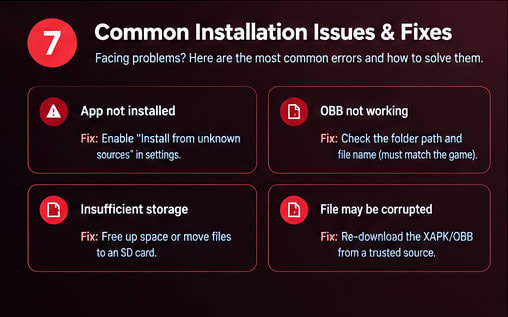
"App not installed"
- Likely causes: "Install unknown apps" is off for your browser or file manager; an older copy of the app with a different signature is still installed; the APK targets a CPU architecture your phone does not have; your Android version is below the app's minimum; the download is incomplete.
- Check and fix: enable the unknown-apps permission for the app doing the installing; uninstall the old copy first (back up saves if the game keeps them locally); confirm you downloaded the arm64-v8a variant for a modern phone; compare your Android version against the listing's requirement; re-download if the file size differs from what the listing states.
OBB "not working" — the game re-downloads data or says it is missing
- Likely causes: wrong folder path or depth; folder name not matching the package; OBB placed on SD card; OBB version mismatched with the APK version (the number inside
main.<version>.<package>.obbbelongs to a specific release); on Android 13+, the copy never actually happened because the file manager was blocked. - Check and fix: rebuild the path as
Android/obb/<package name>/<original filename>on internal storage; make sure the OBB came with the same version as the APK you installed; if your file manager shows an access restriction on the obb folder, use the USB/PC route or an installer app instead.
"Insufficient storage"
- Likely causes: genuinely not enough free space once download, extraction and installation are all counted; a nearly full cache partition on older devices.
- Check and fix: free roughly double the bundle size before starting; clear cache of apps you do not use; move photos and videos off the device; note that some phones reserve a slice of storage that no app can touch, so "2 GB free" in settings is not always 2 GB usable.
Corrupted or incomplete file
- Likely causes: a download interrupted by a dropped connection; a re-hosted file that was trimmed or broken; an archive that failed its integrity check.
- Check and fix: ZArchiver reporting a CRC or "archive is corrupt" error means the file, not your phone — re-download over a stable connection and compare the file size (or checksum, when the listing provides one) before extracting again.
The usual suspects behind all four: wrong APK architecture, an Android version below the minimum, an incorrect OBB folder, mismatched APK/OBB versions, a corrupted download, insufficient storage, a missing storage or install permission, and security restrictions doing their job. Work through that list in order and almost every failed install explains itself. When Play Protect raises a flag, read what it actually says: "unrecognised developer" is normal for sideloaded apps, while a malware verdict means delete the file — and no game is worth disabling your protections for.
Final tips for clean, safe installs

- Download from sources you can check — a listing that names the developer, version and file size gives you something to verify against.
- Match versions deliberately: the APK and its OBB must come from the same release; mixing a newer OBB with an older APK produces the strangest errors in this guide.
- Keep storage headroom, not just storage: double the bundle size is a comfortable rule.
- Keep files organised: one subfolder per game inside
Downloadsaves you from extracting the wrong bundle three months later. - Use a reliable file manager and keep it updated — archive formats and Android's storage rules both move.
- Keep Android updated. Security patches change file-access behaviour (that is exactly what happened to the obb folder in 2023–2024), so knowing your patch level explains a lot.
- Avoid suspicious files: double extensions like
.xapk.apk, sizes wildly off the listing, or names that do not match the game. - Scan when appropriate: Play Protect on by default, and a VirusTotal pass on anything you feel unsure about takes a minute.
- Never disable important protections "just this once." Every legitimate route in this guide works with Play Protect on and unknown-apps permission granted per app, which is the only way it should ever be granted.
Wrapping up: install, play, enjoy
Two routes cover essentially every situation. Manual installation with a file manager gives you full control and works for any combination of APK and OBB once you know the folder rules. An XAPK-capable installer trades a little control for speed and removes the naming and path mistakes before they happen. Neither is "correct" in absolute terms; experienced hands keep both in the toolbox.
Before launching the game, run this checklist once:
- APK installed from a bundle that matches your Android version and architecture
- OBB sitting at
Android/obb/<package name>/with its original filename — or placed there by the installer - Storage headroom left after installation, not zero bytes
- Permissions granted only to the apps that needed them, unknown-apps left off everywhere else
- First launch on Wi-Fi if the game verifies its data online
Get those five right and the scary part of Android game installation is over. What is left is the part the whole exercise was for: install, play, enjoy.
And if a listing on MODGRIND ships with an OBB, its install steps name the exact folder for you — if a mirror's file ever disagrees with those steps, the report button on the mod page reaches a human, not a mailbox.
FAQ
Is it safe to install XAPK files?
The format is just a ZIP container, so the format itself carries no risk. Safety depends on where the bundle came from and who signed the APKs inside it. Trusted source, verified version, Play Protect on — then an XAPK is no riskier than any sideloaded APK.
Can I delete the XAPK or ZIP after installing?
Yes. The archive is only the delivery box; once the app is installed and the OBB is in place, the archive is dead weight. Keep the OBB, though — the game reads it on every launch.
Why can't my file manager open the Android/obb folder?
Because Android restricts it. Access is grant-based on Android 11–12 and blocked outright for many apps on Android 13 and newer after the 2023–2024 security patches. Use the access grant if your device still offers it, copy via USB from a PC, or let an installer app place the OBB.
Do all games need OBB files?
No. Only titles with large asset packs ship them, and an increasing number deliver assets through in-app downloads or Play Asset Delivery instead. If a listing includes an OBB, that specific release needs it.
What is the difference between XAPK, APKS and APKM?
The same idea — a zipped bundle of base APK, splits and sometimes OBB — packaged by different distributors: APKPure (XAPK), SAI (APKS) and APKMirror (APKM). Split-aware installers read all three.
Will these methods still work on Android 15 and 16?
Both routes, yes. The variable part is manual folder access, which has only grown stricter over time; the installer route and the USB/PC route are the ones least affected by each new patch.
